Programmatic Google Trends API
By Sal Uryasev
June 11, 2008
Find more about:
google
trends
api
programmatic
Yesterday, Google released an update to their popular Google Trends tool. There are improvements over the previous version, but the biggest new feature is a new shiny button that lets you download all your data in the format of a CSV. This is a very cool enhancement. Where Google Trends was a geeky toy, it now takes the leap to integrate into analysts' reports and with that, edge its way onto managerial desks.
This python module is a quasi-API to make it easier to authenticate into Google Trends for those who want to squeeze the extra level of functionality out of their data. The advantage of programmatic access is that the data can be automatically trended and merged. It can be snuck into a 9:00 AM daily email to the VP of Marketing so that she knows to ramp up Google Adwords campaigns for some specific keyword. Also, by programatically pulling multiple reports, it is possible to create a wealth of data not visible in a single report. Using one keyword as a benchmark to merge multiple reports, we can do a meaningful comparison on tens or hundreds of relevant keywords.
To use the pyGTrends, the quasi-Google-Trends-API, download the file from our server.
Here is an example of the most basic basic report that you can pull down from Google Trends. The connector function needs authentication info, and download_report needs to be passed a list of keywords.
from pyGTrends import pyGTrends
connector = pyGTrends('google username','google password')
connector.download_report(('keyword1', 'keyword2'))
print connector.csv()
You can, however, use pyGTrends to get any slice of data that you can pull down from Google Trends. To see the exact parameters that you should use, go to Google Trends, and navigate to the specific sufficiently-narrow report that you are interested in. Then, right-click on the CSV download, and save the link location. The different parameters should be discernible from the link. The following code downloads a report for banana, bread, and bakery keywords from April 2008, originating from the magnificent nation of Austria, and scaled using fixed scaling (aka the second download link).
connector.download_report(('banana', 'bread', 'bakery'),
date='2008-4',
geo='AT',
scale=1)
By default, the csv() function downloads the main part of the report, but there are a few additional parts stuck to the bottom of the CSV file. If you are interested in those, pass the section parameter to the csv() function. If you do not want column headers on your data, you can also pass the column_headers parameter as false. The following will return the Language section without any headers.
print connector.csv(section='Language', column_headers=False)
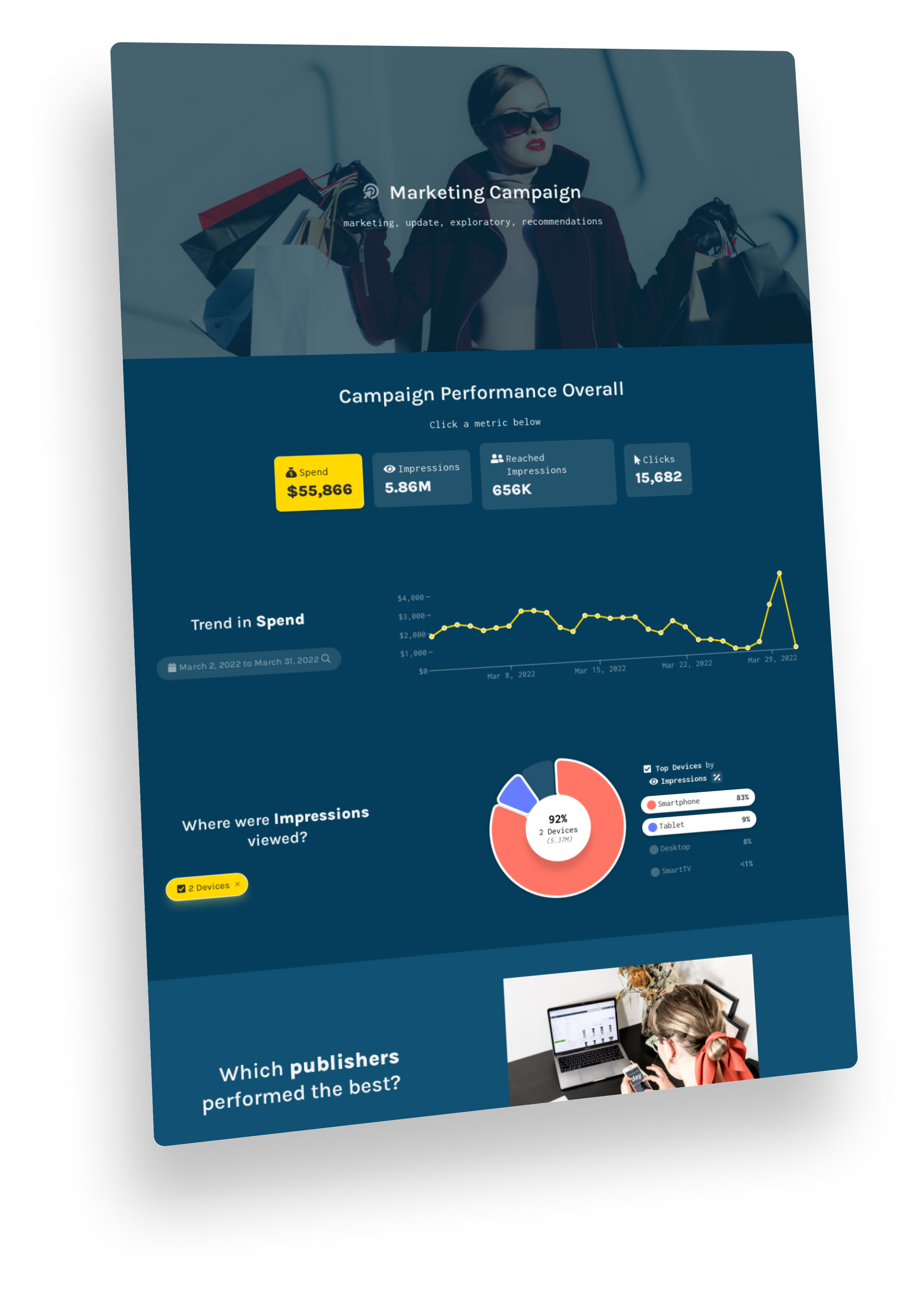
Here is a snapshot from the new Google Trends to add some eye-candy to the post:

How Did We Mash Data into Google Analytics?
By Sal Uryasev
June 6, 2008
Find more about:
googleanalytics
google
This post is the code behind how we mashed external data into Google Analytics.
The first step is to yank reference data from the Google Analytics site to reference against Kampyle's data. We specifically want to gather individual names of websites (index.html, /index2.html), and the current selected daterange. The cell references to the website names in the table can be found using a neat Javascript Shell popular among Greasemonkey and Javascript developers. I will not go into detail about the Javascript Shell, but by checking out the various child nodes for the table object we can track down that document.getElementById('f_table_data').childNodes[3].rows[1].cells[1].textContent points at the text in the first cell of the first row. While the syntax looks long, it is just nested HTML in a more elegant programmatic fashion.
For the date, Google Analytics uses a slightly peculiar hybrid system where the date is drawn initially from the URL, but if the date is modified with the java date tool in the upper right hand corner, it uses that instead. From our end, document.getElementById('f_primaryBegin').value and document.getElementById('f_primaryEnd').value are the java date tool values that only start existing if the date tool is used. Pull these two values if they exist, and simply parse the date from the URL otherwise.
The clickable tab we created is essentially the equivalent of a little Greasemonkey button with a few frills that can be created in the standard Greasemonkey fashion. Wherever possible, I use Google-defined layouts for consistency with the site.
Next, we want to send out our reference data to some external server. Greasemonkey has good functionality for pulling data from other sites and servers through the use of the GM_xmlhttpRequest command. A server-end PHP or Django service might be easiest to implement. In this specific example, Kampyle wanted to use the SOAP protocol. While there is an excellent overall SOAP client for javascript by Matteo Casati, this client does not work in a plug and play fashion with Greasemonkey, and needed some modification. For any devoted SOAPers who want to try Greasemonkey, the revised javascript-soap-client code can be found in the attached file. We use the SHA256 encryption function written by Angel Marin and Paul Johnston, but that is accomplished by just copying and pasting the function into our code.
The result comes back in the form of an xml object describing each row in the table, which we parse using native Javascript/Greasemonkey methods, and pop back into the table in the way that we extracted the individual website names. A neat trick here is to call each individual row individually, and not to wait for the data to come back before calling the next row from the server. Separate listeners can wait and insert the data at their leisure. This allows our page to load up faster, and in case there is an error with one data element, it could potentially allow the rest of the rows to load in peace.
You can play around with my code here. This code is released under the BSD License. You won't be able to use it verbatim without Kampyle's compliance, since they have a secured proprietary API to handle calls to their server. However, much of it should be very portable to other data sources.
Juiced Google Analytics Python API
By Sal Uryasev
May 2, 2008
Find more about:
google
analytics
python
api
pygapi
It is not official. It is not from Google. It is, however, very functional and very here. I present to you pyGAPI, the Juiced Google Analytics Python API. This module allows you to pull information from your incarnation of Google Analytics and employ it programatically into your reporting code.
Let us use iPython to peek through some code using pyGAPI.
In [3]: from datetime import date
In [4]: import pyGAPI
In [5]: connector = pyGAPI.pyGAPI(username, password, website_id="1234567")
Here we create a pyGAPI object. Behind the scenes, pyGAPI logs into Google Analytics, and downloads an identifier cookie. website_id is optional. If omitted, pyGAPI accesses the first website on the account's list. To get a list of all the site IDs to which your site has access, run the function connector.list_sites().
In [6]: connector.download_report('KeywordsReport', (date(2008,3,10), date(2008,3,31)), limit=5)
Download a report into your pyGAPI object. KeywordsReport is the name of the report. It is followed by a tuple containing the start and end dates in python date format. limit is an optional parameter that specifies the number of entries that pyGAPI should pull down. By default, it will pull in all the entries up to a maximum of 10000. Lowering this number will certainly improve performance. The entries returned are ranked by Visits, so you should get the most significant values of the bunch.
In [7]: print connector.csv()
Keyword,Visits,Pages/Visit,Avg. Time on Site,% New Visits,Bounce Rate,Visits,Subscribe,Solutions,Goal Conversion Rate,Per Visit Goal Value
juice analytics,356,5.935393258426966,314.061797752809,0.38764044642448425,0.29494380950927734,356,1.0,0.16292135417461395,1.1629213094711304,0.0
excel training,142,1.971830985915493,98.0774647887324,0.908450722694397,0.6901408433914185,142,1.0,0.0211267601698637,1.0211267471313477,0.0
excel charts,77,1.7922077922077921,95.0,0.9090909361839294,0.7792207598686218,77,1.0,0.03896103799343109,1.0389610528945923,0.0
excel skills,72,1.6527777777777777,75.29166666666667,0.9444444179534912,0.7083333134651184,72,1.0,0.0,1.0,0.0
colbert bump,70,1.3142857142857143,113.77142857142857,0.6428571343421936,0.8428571224212646,70,1.0,0.0,1.0,0.0
This function displays your report in a nice excel-ready CSV format.
In [8]: print connector.parse_csv_as_dicts(convert_numbers=True)
[{'Avg. Time on Site': 314.06179775280901, 'Per Visit Goal Value': 0.0, 'Bounce Rate': 0.29494380950927734, 'Keyword': 'juice analytics', 'Visits': 356.0, 'Pages/Visit': 5.9353932584269664, 'Subscribe': 1.0, 'Solutions': 0.16292135417461395, '% New Visits': 0.38764044642448425, 'Goal Conversion Rate': 1.1629213094711304}, {'Avg. Time on Site': 98.077464788732399, 'Per Visit Goal Value': 0.0, 'Bounce Rate': 0.69014084339141846, 'Keyword': 'excel training', 'Visits': 142.0, 'Pages/Visit': 1.971830985915493, 'Subscribe': 1.0, 'Solutions': 0.021126760169863701, '% New Visits': 0.90845072269439697, 'Goal Conversion Rate': 1.0211267471313477}, {'Avg. Time on Site': 95.0, 'Per Visit Goal Value': 0.0, 'Bounce Rate': 0.77922075986862183, 'Keyword': 'excel charts', 'Visits': 77.0, 'Pages/Visit': 1.7922077922077921, 'Subscribe': 1.0, 'Solutions': 0.038961037993431091, '% New Visits': 0.90909093618392944, 'Goal Conversion Rate': 1.0389610528945923}, {'Avg. Time on Site': 75.291666666666671, 'Per Visit Goal Value': 0.0, 'Bounce Rate': 0.70833331346511841, 'Keyword': 'excel skills', 'Visits': 72.0, 'Pages/Visit': 1.6527777777777777, 'Subscribe': 1.0, 'Solutions': 0.0, '% New Visits': 0.94444441795349121, 'Goal Conversion Rate': 1.0}, {'Avg. Time on Site': 113.77142857142857, 'Per Visit Goal Value': 0.0, 'Bounce Rate': 0.84285712242126465, 'Keyword': 'colbert bump', 'Visits': 70.0, 'Pages/Visit': 1.3142857142857143, 'Subscribe': 1.0, 'Solutions': 0.0, '% New Visits': 0.6428571343421936, 'Goal Conversion Rate': 1.0}]
This function goes the extra step and converts the CSV into a dictionary for easier programmatic use. By default, all entries will be returned as python strings. Setting convert_numbers to True, as we did here, will additionally parse the dictionary to turn all numbers into float values.
In [9]: print connector.list_reports()
('ReferringSourcesReport', 'SearchEnginesReport', 'AllSourcesReport', 'KeywordsReport', 'CampaignsReport', 'AdVersionsReport', 'TopContentReport', 'ContentByTitleReport', 'ContentDrilldownReport', 'EntrancesReport', 'ExitsReport', 'GeoMapReport', 'LanguagesReport', 'HostnamesReport', 'SpeedsReport')
This gets a list of all the reports that I have successfully tested thus far. All site-specific reports should work. A couple site-section specific reports should be included in the next update of pyGAPI.
Google is great and will release a real API soon, but until then you can download pyGAPI.
8 comments | Show all comments only the last 5 are shown
sandro turriate said:
the api looks super friendly yet powerful, I'm so glad someone finally made these reports available programatically, awesome stuff man!
Son Nguyen said:
I wonder if this violate Google Analytics' TOS and how long before Google changes something that things break apart.
Sal said:
There is certainly a risk that something could/would break. Google, however, is a company that takes the high road in terms of programming and in doing what is best for the web. The code behind the Google Analytics website is very elegant, while pyGAPI does not do screen scraping for any of the real work. The data is pulled through the data exporting system. I would say that it is unlikely that the API would break without a major overhaul of the entire GA system.
I can't specifically speak towards the TOS, but pyGAPI is doing the equivalent work of an underpaid temp who simply logs in and downloads all the requested reports. The poor temp is just getting a break. Read the TOS and use pyGAPI at your own risk.
Chris Gemignani said:
Son Nguyen,
It is far more likely that Google will provide a supported API that would supercede this. That would be the Googley thing to do.
Similar APIs have been produced around Gmail without interference. If things break, we, the community will fix it.
Tom said:
Using the example above shouldn't it be connector.list_sites() to get a list of all the site id's. Also for me this only returning the first site.
The report list, connector.report_list(), seems not to be comprehensive here's a better one:
Google Analytics Reports
-Visitors-
VisitorsOverviewReport
GeoMapReport
VisitorTypesReport
LanguagesReport
-Visitor Trending-
VisitsReport
UniqueVisitorsReport
PageviewsReport
AveragePageviewsReport
TimeOnSiteReport
BounceRateReport
-Visitor Loyalty-
LoyaltyReport
RecencyReport
LengthOfVisitReport
DepthOfVisitReport
-Browser Capabilities-
BrowsersReport
PlatformsReport
OsBrowsersReport
ColorsReport
ResolutionsReport
FlashReport
JavaReport
-Network Properties-
NetworksReport
HostnamesReport
SpeedsReport
UserDefinedReport
-Traffic Sources-
TrafficSourcesReport
DirectSourcesReport
ReferringSourcesReport
SearchEnginesReport
AllSourcesReport
KeywordsReport
-Adwords-
AdwordsReport
KeywordPositionReport
OfflineAudioReport
CampaignsReport
-Content-
ContentReport
TopContentReport
ContentByTitleReport
ContentDrilldownReport
EntrancesReport
ExitsReport
Sal said:
Thanks for catching the errors Tom!
You are correct on all three counts.
I fixed the upload so that it correctly displays list_sites() if you have more than one site in your list, and i fixed the typo here in the blog.
I'll peek through the list of reports to make that more exhaustive as well.
Matt Webb said:
This is awesome work. Do you think this python script could work in conjunction with superkaramba on Linux?
Rodrigo said:
This is great. I put this together with a Samurize desktop to display Analytics data on my desktop.
Thanks!
Add a comment
Setting DJANGO_SETTINGS_MODULE
By Chris Gemignani
April 30, 2008
Find more about:
django
python
bash
tools
Here's a bash function I use for Django development to quickly set DJANGO_SETTINGS_MODULE.
function setdsm() {
# add the current directory and the parent directory to PYTHONPATH
# sets DJANGO_SETTINGS_MODULE
export PYTHONPATH=$PYTHONPATH:$PWD/..
export PYTHONPATH=$PYTHONPATH:$PWD
if [ -z "$1" ]; then
x=${PWD/\/[^\/]*\/}
export DJANGO_SETTINGS_MODULE=$x.settings
else
export DJANGO_SETTINGS_MODULE=$1
fi
echo "DJANGO_SETTINGS_MODULE set to $DJANGO_SETTINGS_MODULE"
}
I put this in my .bash_profile, then a quick setdsm sets the DJANGO_SETTINGS_MODULE to the settings.py in the current directory and add the current directory and it's parent to PYTHONPATH.
Keyword Trends in Google Analytics With Greasemonkey
By Sal Uryasev
April 23, 2008
Find more about:
webanalytics
google
analytics
hack
greasemonkey
Note: We've updated the script to work on Firefox 3 as well as Firefox 2.
After the warm reception for the first version of our Enhanced Google Analytics, we decided to add some new functionality. (Nothing like a few kinds words to keep us in the giving mood.) The first script created a couple new tables in the Google Analytics interface that highlight recent changes in referral visits. It uses Greasemonkey, an add-on for Firefox that allows a user to insert javascript directly into a webpage.
Our update gives you even more ability to understand the data in Google Analytics:
- At the suggestion of Avinash Kaushik, the new script works for keyword data, helping you see how organic search traffic is changing. An increase in a keyword may indicate a general change in user interests and/or improved performance on search results.
- My coworker Pete Skomoroch also suggested that I add the ability to see declines in referrals and new keyword searches.
- With the help of Paul Irish, the script is now better able to interface with the date widget on the Google Analytics site.
(Click the above button for a simulation.)

When you click the button, your browser will download some historical data behind the scenes, and display a nice summary of the best and worst performing keywords/referring domains.
Installation Instructions:
Firefox 2.0+
Greasemonkey
googleanalyticsdownloade.user.js
If you don't already have Firefox, install it. Install Greasemonkey, and do the required Firefox restart. You should see a handsome monkey peeking at you from the bottom right hand corner of your browser. Open the script file in your firefox browser, and Greasemonkey should give you an option to install the script.
Afterwards, log into Google Analytics, and navigate to your Referring Sources or Keywords Tab. Click the button.
Configuring the script:
We spent some time trying to find convenient default settings here at Juice Analytics, so the script should work straight out of the box. Some users, however, may find it convenient to alter some of these configurations. To do so, in Firefox, go to Tools=>Greasemonkey=>Manage User Scripts..., select Google Analytics Downloader, and then click Edit in the lower left corner of the window. This should open up the script file in a text editor. If your computer does not have a default text editor configured, you may have to choose one. 'c:\windows\notepad' is a good bet for Windows machines.
This is what you should see:

The bracket labeled 'keywords?' controls defaults for the Keywords page, and correspondingly, 'referring_sources?' controls the Referring Sources page.
To change the settings, simply change the corresponding variable to your preferred default. Make sure to refresh your Google Analytics webpage, if you have it open, so the new settings are loaded.
Now for the nitty gritty configuration details:
- display_limit: This controls the maximum entries that each table will contain. This may be useful for large, sprawling sites.
- growth_tolerance: This is the percentage growth parameter. Changing it to .10, for example, will catch everything that has grown by 10%, as opposed to the default 50% and 20%, respectively.
- minimum_number_elements: This is a significance benchmark that can be used to limit what is displayed upon the screen. By default, only keywords with at least 10 elements are displayed upon the screen. Referring Sites does not have a minimum by default, but one can be set if desired.
- limit: Limit is more of an internal parameter that determines how many entries should be downloaded from Google in order to get the results that are visible here on the page. Lower the limit to increase speed. If the limit is set to a very high number, you will get the largest result set, but you will have to sit around for a while for the results to load. Since the results are downloaded ordered by volume, raising the limit from the default numbers will not actually give more significant results. You will simply get more of the smaller results, such as keywords with only 1 hit.
- look_back: This is a very important parameter. The script uses the date displayed upon your Google Analytics page to determine the full range that you want to consider in your results, but 'look_back' determines how many of those days are used for the significance test. So, say the range you have displayed in Google is March 23 - April 22 and your look_back is 7 days. The script will compare the average referrals for a given keyword from April 16-22 to the average from March 23-April 15, and will return the keyword only if the recent average is 20% higher than the rest of the time period. Thus, if you want to increase the total range of the data, change the dates on the actual webpage. Change 'look_back' only if you want to change the period of significance.
Happy analyzing!
11 comments | Show all comments only the last 5 are shown
Avinash Kaushik said:
Sal: Thanks so much for this enhancement to the first script, given all the attention on Search I think this is absolutely super valuable. I am on a recommendation overdrive on this (I have a two slides on Juice in my official presentations! :).
Thank you again, this is excellent.
-Avinash.
SM said:
Thanks for pulling these scripts together, very useful.
Patrick H. said:
This is great, thanks a lot for posting it. Very good addition to GA.
James said:
Why didn't google analytics do this months ago?
This is great!
I wear many hats at my company. As entertaining as it may be, I don't have the time to play in excel.
Thank you!
Brian said:
Great work guys! This is killer!
New to the blog, but you've won a reader. ;)
Sascha said:
Thats perfect man!
Please more of this awesome features :)
Best Regards from germany
Tim said:
Great tool! But sadly it doesnt work anymore in FF 3. Do you have an update?
Regards, Tim
spudart said:
Yes, I love this tool. Unfortunately ever since Firefox automatically updated itself from 2.0.0.14 to 2.0.0.15, it doesn't work anymore in 2.0.0.15. An update would make my day.
Sal Uryasev said:
Silly Firefox. Thanks for pointing it out!
The script should work if you reinstall it now.
Steve said:
I'm having trouble getting any results to return when running the script. In one week we have about 9,000 different keywords sending traffic to our site - any thoughts on configuring some of the settings to retrieve results? I just get the "loading..." button showing for minutes on end. Maybe increasing the growth_tolerance or lowering the limit?
michelle said:
I don't understand how to get grease monkey to work - i followed all the install directions fine... now that its installed though I don't know what to do... can anyone help me? not sure I'm even in the right place :/
Add a comment
Earlier writing


8 comments | Show all comments only the last 5 are shown
yadab das said:
The PyGTrends.py API looks really fascinating to me. I have almost converted the Code to Java and will publish this week with a Swing Interface. Any better suggestions on that?
Archie said:
Hi Yadab! Could you please share the Java code you have written? I am also working on it. Please contact me by email.
aavaliani (at) gmx.net
Gautham Ramachandran said:
The PyGTrends.py API is really awesome. I have a question though. Does Google frown upon iterative pings to Google Trends to pull Relative traffic. To make it more specific, if I have 2,000 keywords and I code iterative pulls from Google trends, do I stand a chance of getting banned?
Gautham.
Sal Uryasev said:
Yes and No.
I believe that Google tends to be generous regarding use of their services. They want people to get the maximum utility out of the products, but they don't want their generosity to be abused. The login requirement for downloading the Google Trends data is probably there just for that reason. The cap is probably quite large, but there certainly is one. I wouldn't build a webservice (without having users use their own account). You may have more luck if you lump many keywords per call, and spread out your data gathering over longer periods of time.
James Solo said:
This Python script is great and provides an excellent solution. However, I have never used Python before so I was hoping someone could email (james.solo |AT| mathworks.com) me step by step instructions on how to modify this script to work with keywords of my choice ( I have 40 total ) and to grab data from 2004 to-date using the "CSV with relative scaling" data file.
Many thanks,
James
Arjun said:
I have been using the pyGTrends module and have encountered problems when using keywords with more than one word. For instance, "air express" was one of the keywords. It has a search history--when I manually download the data from Google Trends, the historical data shows up fine. However, when I use the pyGTrends module, the data comes out as all zeroes.
The same problem occurs with all keywords/phrases that contain more than one word. Is pyGTrends compatible with only one-word keywords, and if not, how do I fix this problem?
If someone could email me, arjunrmodi at gmail dot com, that would be great. Thanks.
A said:
Great module.
Sal Uryasev said:
Arjun: It should work now. Thanks for pointing it out!
said:
Add a comment